Adding a DUR
Select the applicable tab to learn about adding a DUR in your province.
A DUR is referred to as an Other Medication on the EHR. Other Medications can be added to the patient's EHR Profile to ensure interaction checking is occurring for all medications the patient is taking.
A new DUR record can be added to the EHR or an existing one can be transmitted.
 Adding a New DUR Record to the EHR
To add a new DUR to the EHR:
-
Open the Patient Folder.
-
Select the Profile tab.
-
Select RX > Add DUR.
-
Search for and select the drug you want to add to the patient's Profile. An Interaction Detail window appears. If there are no interactions, that is indicated in the window.
-
Determine whether the DUR should still be added. If so, select Accept. The DUR Instructions window opens.
-
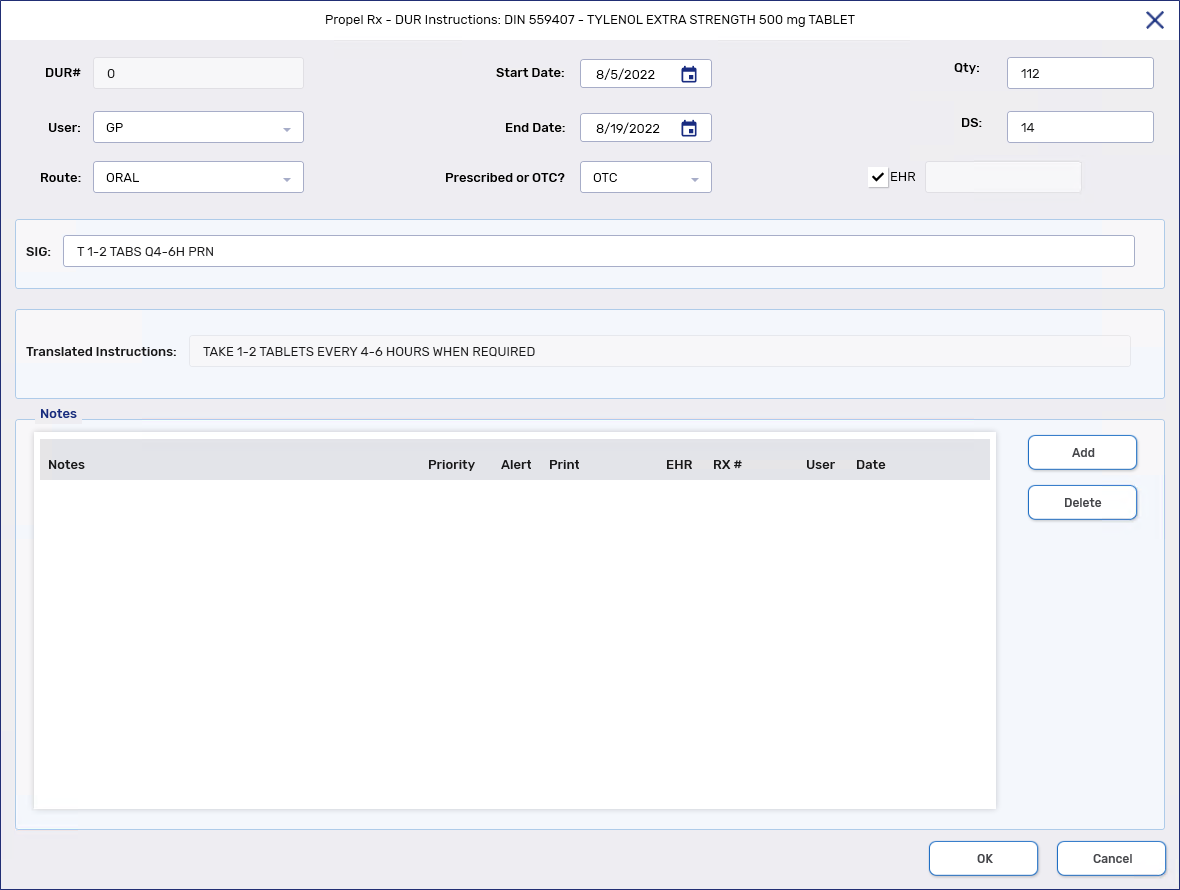
Enter or select the following for the drug:
-
Start Date
-
End Date
-
Qty - this is automatically added to the translated instructions which are sent to the EHR.
-
DS - this is automatically added to the translated instructions which are sent to the EHR.
-
Route - the route is automatically populated based on the route information in the Drug or Mixture Folder.
-
SIG
-
Prescribed or OTC
-
EHR checkbox - depending on the EHR Type in the Drug or Mixture Folder, the EHR checkbox may be selected automatically.
-
-
To add notes to the DUR, select the Add button in the Notes section and enter information for the note in the textbox. Select the following checkboxes where appropriate.
-
Priority - if you want the note to pop up as an alert when opening the Patient Folder or processing a prescription in Rx Detail. If you already viewed the pop up when opening the Patient Folder, it does not display again in Rx Detail.
-
Alert - if you want the note to appear in the Rx Detail Alerts section when processing a prescription.
-
Print - if you want the note to print under the Notes/Alerts section of the Half label or if Digital Workflow is enabled, appear under the Clinical Review Notes tab.
-
EHR - if you want to transmit the note to the EHR. By default, this checkbox is ON if the Clinical Information record has been transmitted to the EHR.
-
Select the OK button to transmit the Other Medication message to the EHR. When the DUR is successfully added to the patient's EHR, the local Profile is updated with the DUR.

Adding an Existing DUR to the EHR
To add an existing DUR to the EHR:
-
Open the Patient Folder.
-
Select the Profile tab.
-
Select the DUR.
-
Select Detail. The DUR Instructions window opens.
-
Select the EHR checkbox.
-
Select OK. A processing message appears for the transmission of the DUR to the EHR.
-
Select Save.
The Pharmacy Network requires that non-prescription medications be added to a patient's EHR Profile. A new DUR record can be added to the EHR or an existing one can be transmitted.
As per Newfoundland and Labrador Pharmacy Board Standards of Practice, acetaminophen with codeine is recorded on the Patient Profile as a prescription with the pharmacist as a prescriber.
Adding a New DUR Record to the EHR
To add a new DUR to the EHR:
-
Open the Patient Folder.
-
Select the Profile tab.
-
Select RX > Add DUR.
-
Search for and select the drug you want to add to the patient's Profile. An Interaction Detail window appears. If there are no interactions, that is indicated in the window.
-
Determine whether the DUR should still be added. If so, select Accept. The DUR Instructions window opens.
-
Enter or select the following for the drug:
-
Start Date
-
End Date
-
Qty - this is automatically added to the translated instructions which are sent to the EHR.
-
DS - this is automatically added to the translated instructions which are sent to the EHR.
-
Route - the route is automatically populated based on the route information in the Drug or Mixture Folder.
-
SIG
-
Prescribed or OTC
-
EHR checkbox - depending on the EHR Type in the Drug or Mixture Folder, the EHR checkbox may be selected automatically.
-
-
To add notes to the DUR, select the Add button in the Notes section and enter information for the note in the textbox. Select the following checkboxes where appropriate.
-
Priority - if you want the note to pop up as an alert when opening the Patient Folder or processing a prescription in Rx Detail. If you already viewed the pop up when opening the Patient Folder, it does not display again in Rx Detail.
-
Alert - if you want the note to appear in the Rx Detail Alerts section when processing a prescription.
-
Print - if you want the note to print under the Notes/Alerts section of the Half label or if Digital Workflow is enabled, appear under the Clinical Review Notes tab.
-
EHR - if you want to transmit the note to the EHR. By default, this checkbox is ON if the Clinical Information record has been transmitted to the EHR.
-
Select the OK button to transmit the Other Medication message to the EHR. When the DUR is successfully added to the patient's EHR, the local Profile is updated with the DUR.
Adding an Existing DUR to the EHR
To add an existing DUR to the EHR:
-
Open the Patient Folder.
-
Select the Profile tab.
-
Select the DUR.
-
Select Detail. The DUR Instructions window opens.
-
Select the EHR checkbox.
-
Select OK. A processing message appears for the transmission of the DUR to the EHR.
-
Select Save.
To add a new DUR:
-
Open the Patient Folder.
-
Select the Profile tab.
-
Select RX > Add DUR.
-
Search for and select the drug you want to add to the patient's Profile. An Interaction Detail window appears. If there are no interactions, that is indicated in the window.
-
Determine whether the DUR should still be added. If so, select Accept. The DUR Instructions window opens.
-
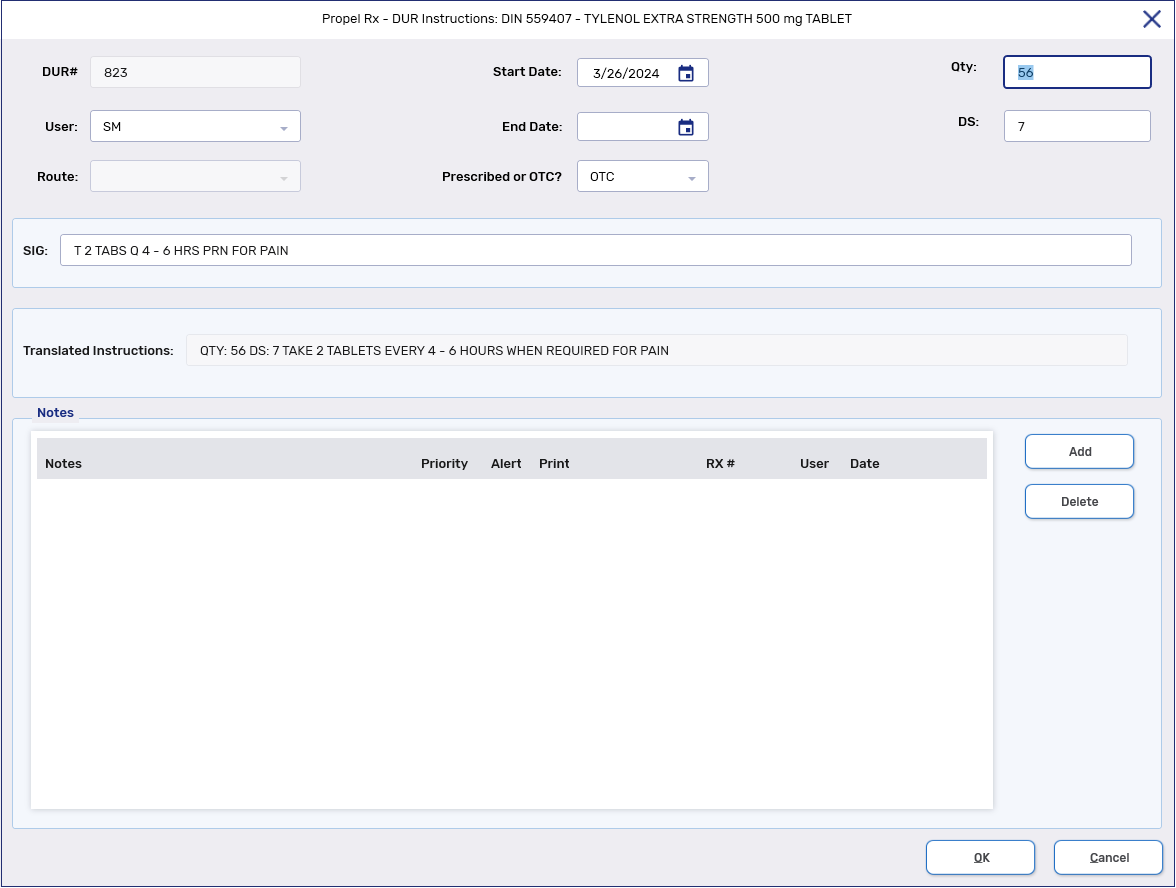
Enter or select the following for the drug:
-
Start Date
-
Optional: End Date
The End Date is mandatory for Alberta pharmacies with Real Time Integration (RTI).
-
Qty
-
DS
-
SIG
-
Prescribed or OTC
-
-
To add notes to the DUR, select the Add button in the Notes section and enter information for the note in the textbox. Select the following checkboxes where appropriate.
-
Priority - if you want the note to pop up as an alert when opening the Patient Folder or processing a prescription in Rx Detail. If you already viewed the pop up when opening the Patient Folder, it does not display again in Rx Detail.
-
Alert - if you want the note to appear in the Rx Detail Alerts section when processing a prescription.
-
Print - if you want the note to print under the Notes/Alerts section of the Half label or if Digital Workflow is enabled, appear under the Clinical Review Notes tab.
-
Select OK.
-
Select Save.The Patient Profile is updated with the DUR.